Before users can be assigned to individual projects in SmartPM, they must first be added to the Company Roster. This ensures they have proper access and login credentials to participate in projects.
To add a user to the Company Roster, follow these steps:
- Click the Admin tab on the left navigation menu.
- Select ‘Users’ from the top menu.
- Click ‘+ User’ from the top right.
- First, select the user’s role.
- Enter in the user’s role, email, name, phone number, and title.
- Determine whether you want the user to have access to SSO and reporting by checking or not checking the ‘Restrict Reporting Access’ and ‘SSO user’ checkboxes.
- Click save.
The user will receive an email with instructions on how to login to SmartPM.
To delete a user from the Company Roster, follow these steps:
- Click the Admin tab on the left navigation menu.
- Select ‘Users’ from the top menu.
- Locate the user you would like to delete.
- Click the trashcan icon to the right of their row.
- Select ‘Yes.’
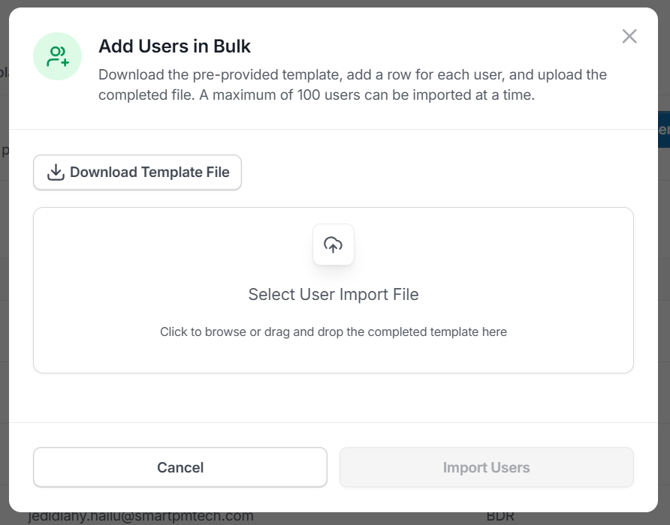
To add users in bulk: Click Add Users in Bulk, click Download the Template File, fill out the user information to be added, and elect user import file to add the completed template. Click Import Users when file is uploaded.