SmartPM integrates with Autodesk to give your team a seamless way to link your document management system with your project controls platform. Once the integration is set up at the company level, project teams can access and sync files from Autodesk without leaving SmartPM.
Connect Your Account
- From Company Admin, go to Integrations.
- Locate the Autodesk widget
- Click View on the bottom right, then click Connect.
- Enter your Autodesk password and click Next.
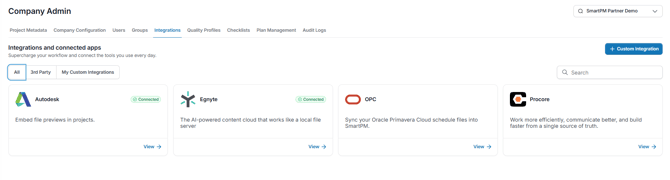
Your account is now connected to Autodesk.
Correlate Projects
Once connected, you'll need to match each SmartPM project to its corresponding project in Autodesk.
- From the integrations page, click View
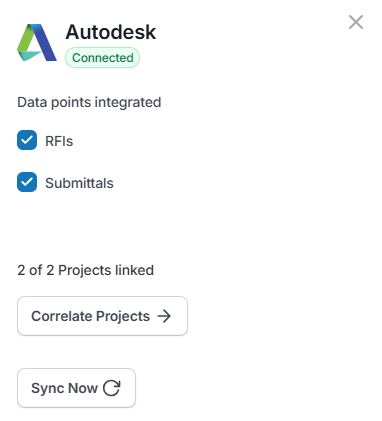
- From the side panel, click Correlate Projects
- From the dropdown, select the project that matches the same project in Autodesk (or Procore)
- Click Save
You are able to integrate your RFIs and Submittals by selecting the check mark next to each data point.
How Sync Works
- Correlated projects sync automatically every 8 hours.
- Only the data points you've selected to sync (RFIs, submittals, or both) will be pulled in.
- To sync manually, select sync now when viewing the platform integration details.
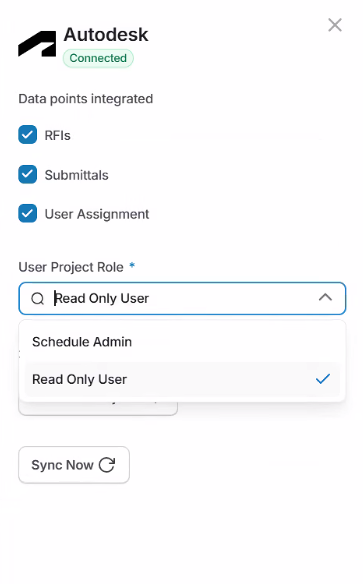
User Assignment
To sync project users from Procore, select the User Assignment checkbox and choose whether those users get Read Only or Schedule Admin access. Once you confirm, anyone assigned to the project in Procore is automatically added to the project in SmartPM.
Note: Each user must have the SmartPM app installed in Procore for this to work.