SmartPM now integrates with Egnyte to give your team a seamless way to link your document management system with your project controls platform. Once the integration is set up at the company level, project teams can access and sync files from Egnyte without leaving SmartPM.
Connecting Egnyte to SmartPM eliminates the need to manually transfer files between platforms. Key benefits include:
- Centralized document access – Pull files stored in Egnyte directly into your SmartPM projects, keeping everything in one place.
- Reduced manual work – No more downloading from Egnyte and re-uploading to SmartPM. The integration handles the connection for you.
- Consistent file management – Your team continues working in Egnyte as usual, while SmartPM stays in sync with the latest project documents.
- Company-wide setup – Administrators configure the integration once at the company level, making it available across all relevant projects.
Note: You must have company admin permissions in SmartPM to set up Egnyte Integration
To set up your Egnyte Integration:
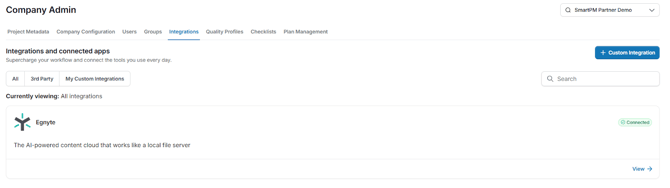
- Navigate to Integrations. Go to Company Admin Settings via the global navigation menu on the left side of your screen. Click the Integrations tab, then select 3rd Party to filter to third-party integrations.
- Find and Open the Egnyte Integration. Locate the Egnyte card and click View → at the bottom right of the card. A side panel will appear with details about connecting SmartPM to Egnyte
- Connect Your Egnyte Account. Click Connect. SmartPM will display a confirmation message that a pop-up has been opened for you to authenticate your Egnyte account. If the pop-up does not appear, click the link provided to try again.
- Enter Your Egnyte Domain. In the pop-up window, enter your Egnyte domain (e.g., app4smartpm) in the field provided, then click Next.
- Log in and Authorize Access. Sign in with your Egnyte credentials. On the authorization screen, click Allow Access to grant SmartPM permission to read and write files and folders in your Egnyte account.
- Correlate Your Projects. Once authorized, the pop-up will close, and you’ll be taken to the Correlate Projects page. Here you’ll map your SmartPM projects to their corresponding Egnyte folders. You can use the search bar to filter projects by name.
- Map a Project to an Egnyte Folder. Click Update next to the project you want to link. A folder selection panel will slide out, showing your Egnyte folder structure. Browse to and select the appropriate folder, then click Save.
- Save Your Project Correlations. After mapping your projects, click Save at the top right of the Correlate Projects screen. You can also click Skip to do this later.
- Configure Data Points and Sync. You’ll be redirected to the main Integrations page. Click View → on the Egnyte card again to open the integration panel. Under Data points integrated, check the Files checkbox. Then click Sync Now to kick off the initial sync in the background.
- Save Your Settings. Click Save to confirm your configuration. Once the sync completes, you’ll see a green confirmation banner reading “Integration synced successfully!” The button will update to Sync Again for future manual syncs. Files will sync automatically every 8 hours.