This article breaks down everything packed into the Executive Dashboard so you always know what you’re looking at, why it matters, and how each piece helps you keep projects moving in the right direction. You’ll get a clear understanding of every chart, metric, and trend on the board, along with how to use them to spot issues early, track progress, and guide smarter conversations with your teams.
Portfolio Overview:
Displays key performance indicators averaged across all active projects, giving executives a real-time, portfolio-wide view of schedule health and risk. Each card is clickable, instantly filtering the dashboard to show the projects matching that metric, so leaders can drill into the riskiest jobs without manually sorting through data.

Projects:
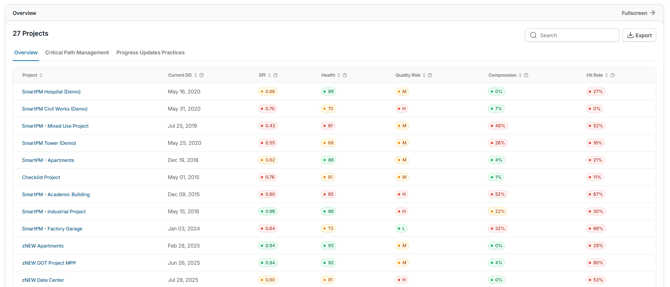
Table view of active projects in the portfolio, showing each project’s Name, Current Data Date, SPI, Health, Quality Score, Compression, and Hit Rate. Includes search, sort (ascending/descending by any metric), and export options.
Filter:
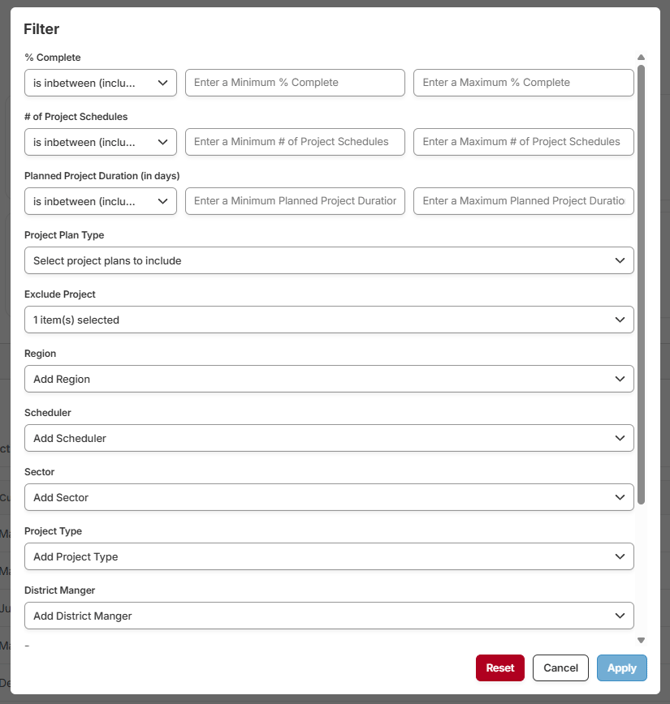
Clicking any metric card instantly applies a filter to the dashboard, showing only the projects that match that metric. Filters can be further refined by project, region, scheduler, sector, project type, district manager, revenue range, or earned value range.
Portfolio Dropdown:
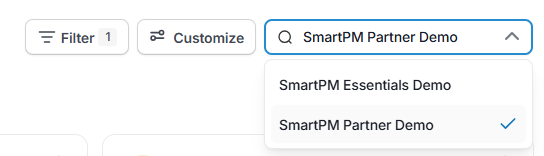
Dropdown for switching between different organizations in your account. For large GCs, this could represent operating companies or divisions within the parent company. For owners, it could represent different real estate entities, investment groups, or portfolios.
Executive Progress:
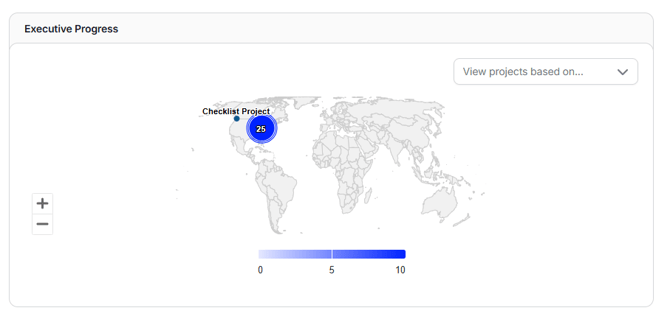
Interactive map showing all active projects by location. Projects can be color-coded by Health, Quality, Compression, or SPI to highlight risk levels at a glance, or shown by Location Only for geographic context. Clicking an area on the map drills down to the individual projects in that location, displaying their scores and key metrics.
Projects by Region:
Breaks down active projects by geographic region (e.g., West, Central, East), showing the number of projects, average Health, average Quality Risk, and average Compression for each. All metrics are color-coded by risk level, and each row can be used as a quick filter to view only projects from that region.
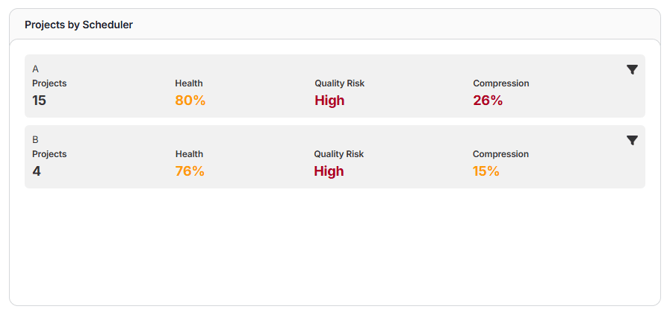
Projects by Scheduler:
Compares active projects by assigned scheduler, showing the number of projects, average Health, average Quality Risk, and average Compression for each. All metrics are color-coded by risk level, and each row can be used as a quick filter to view only projects for that scheduler.
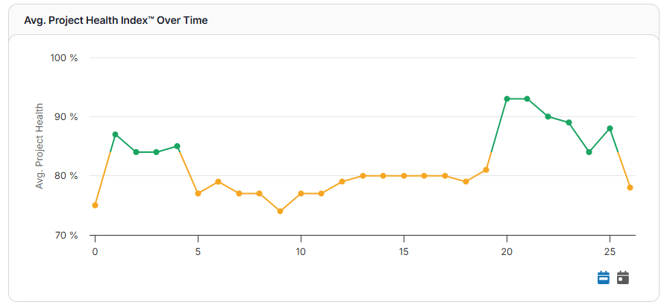
Average Project Health Index Over Time:
Overall project risk over time, based on a weighted calculation of Schedule Quality Grade™, SPI, and Schedule Compression Index™.
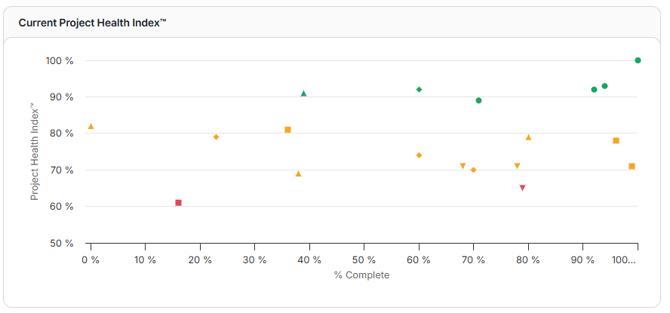
Current Project Health Index:
Scatterplot showing Project Health Indices of projects, click on one and it will show you the Health index overtime for that specific project.
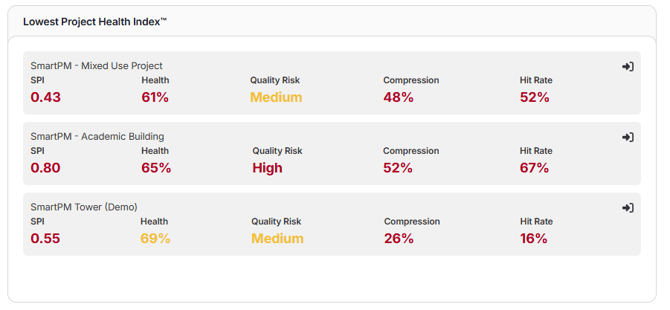
Lowest Project Health Index:
Lists the three projects with the lowest current Project Health Index™, including each project’s SPI, Health, Quality Risk, Compression, and Hit Rate. Each project entry links directly to its workspace for a detailed review.
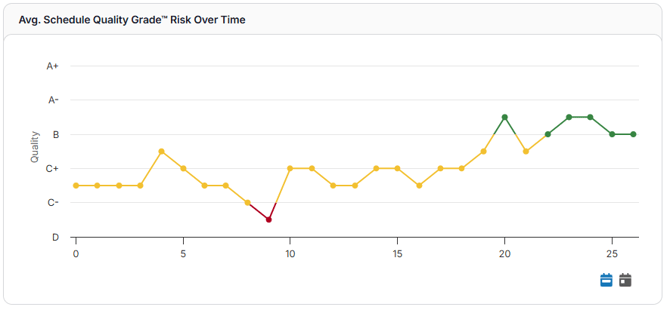
Average Schedule Quality Grade Risk Over Time:
Line graph showing the portfolio’s average Schedule Quality Grade™ risk over time, viewable by period or by month. Grades reflect overall schedule integrity and reliability, based on missing logic, constraints, float, and other quality metrics.
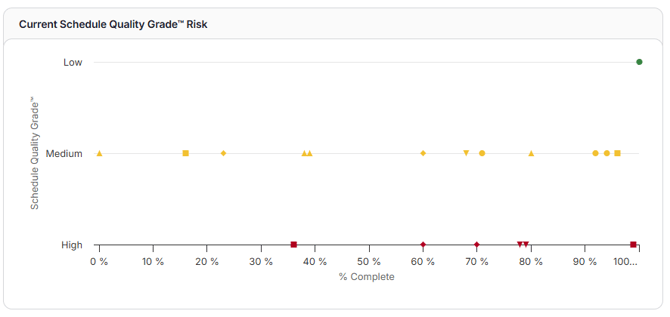
Current Schedule Quality Grade Risk:
Scatterplot showing the current Schedule Quality Grade™ risk for each project, color-coded by risk level. Clicking a project opens its Schedule Quality Grade™ trend over time.
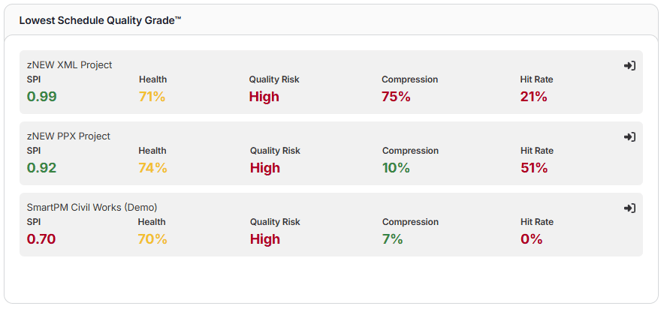
Lowest Schedule Quality Grade:
Lists the three projects with the lowest current Schedule Quality Grade™, along with SPI, Health, Quality Risk, Compression, and Hit Rate. Each project entry links directly to its workspace for detailed review.
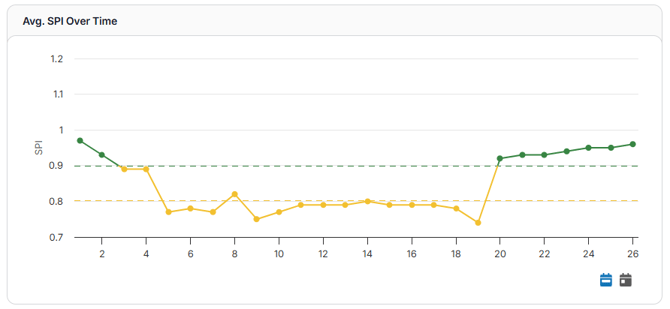
Average SPI Over Time:
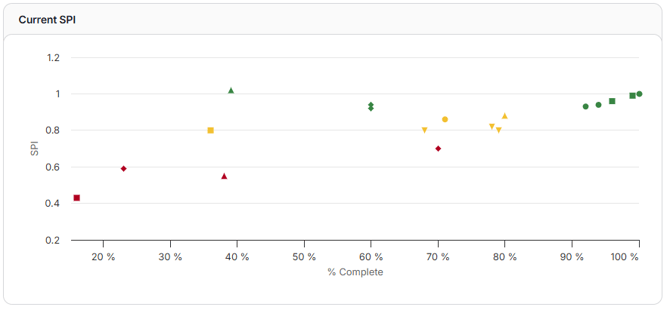
Line graph showing the portfolio’s average Schedule Performance Index (SPI) over time, viewable by period or by month. SPI is calculated as Actual % Complete ÷ Planned % Complete (0-90%), indicating how closely work is progressing to the plan.
Current SPI:
Scatterplot showing the current SPI for each project, color-coded by risk level. Clicking a project opens its SPI trend over time.
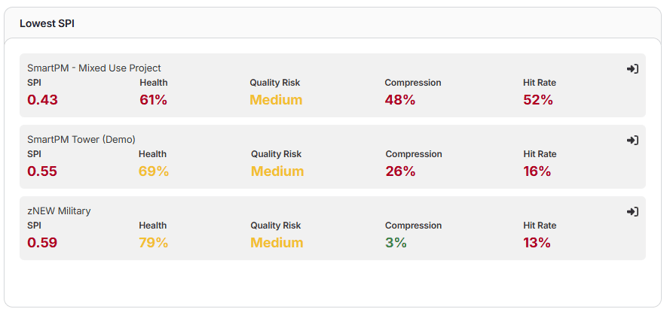
Lowest SPI:
Lists the three projects with the lowest current SPI, along with Health, Quality Risk, Compression, and Hit Rate. Each project entry links to its workspace for detailed review.
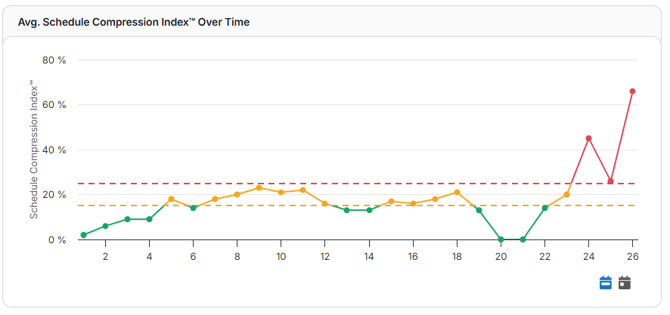
Average Schedule Compression Index Over Time:
Line graph showing the portfolio’s average Schedule Compression Index™ over time, viewable by period or by month. The index measures how much additional effort is required to meet the current completion date compared to the original plan.
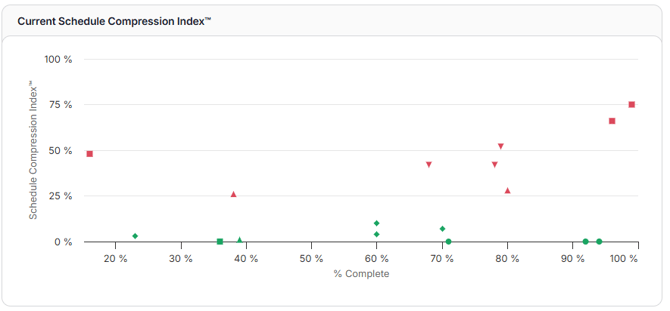
Current Schedule Compression Index:
Scatterplot showing the current Schedule Compression Index™ for each project, color-coded by risk level. Clicking a project opens its Compression Index trend over time.
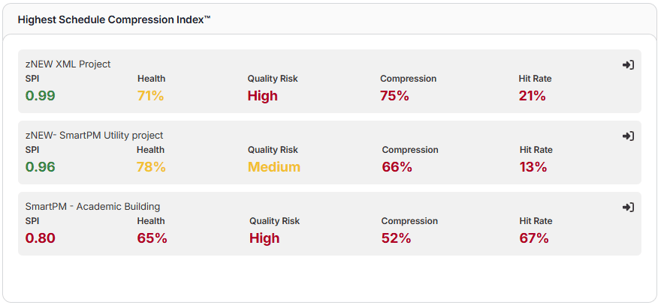
Highest Schedule Compression Index:
Lists the three projects with the highest current Schedule Compression Index™, along with SPI, Health, Quality Risk, and Hit Rate. Each project entry links to its workspace for detailed review.
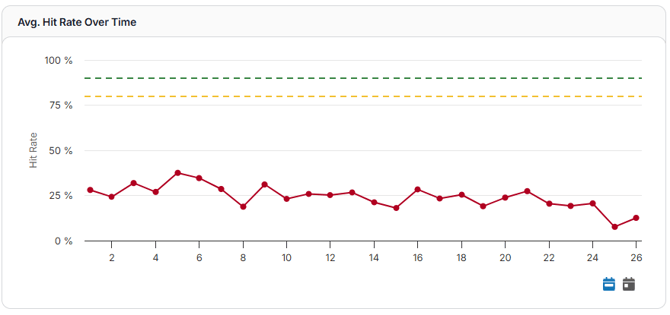
Average Hit Rate Over Time:
Line graph showing the portfolio’s average hit rate over time, viewable by period or by month. Hit rate measures the percentage of activities that start and finish on their planned dates, reflecting schedule reliability.
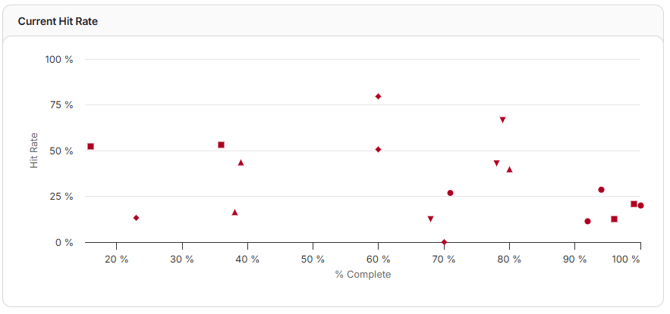
Current Hit Rate:
Scatterplot showing the current hit rate for each project, color-coded by risk level. Clicking a project opens its hit rate trend over time.
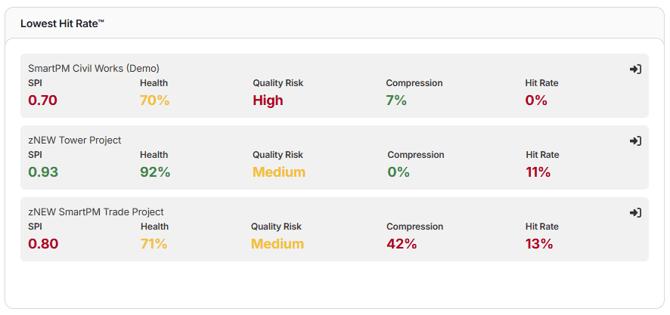
Lowest Hit Rate:
Lists the three projects with the lowest current hit rate, along with SPI, Health, Quality Risk, and Compression. Each project entry links to its workspace for detailed review.
Most Penalized:
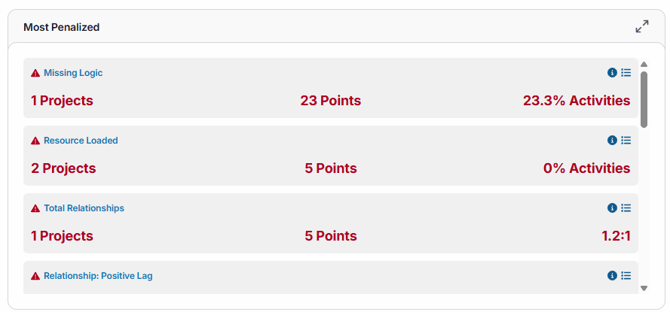
Displays the schedule quality metrics with the greatest negative impact across the portfolio. For each metric (e.g., Missing Logic, Unstatused Activities), the card shows the number of impacted projects, total points deducted from the quality rubric, and percentage of activities affected. Includes an info tooltip defining each metric and a drill-down list showing the impact for every affected project.
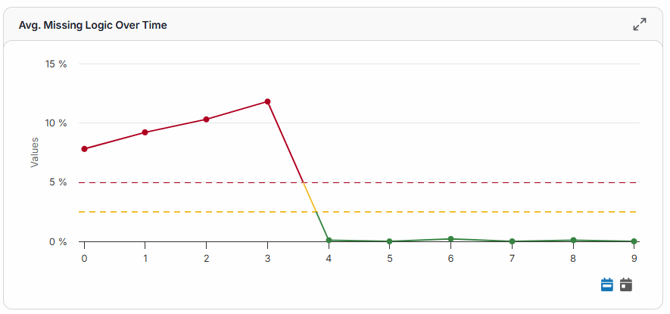
Average Missing Logic Over Time:
Line graph showing the portfolio’s average percentage of activities missing a predecessor and/or successor, viewable by period or by month. Missing logic increases the risk of inaccurate critical paths, delay mismanagement, and schedule compression.
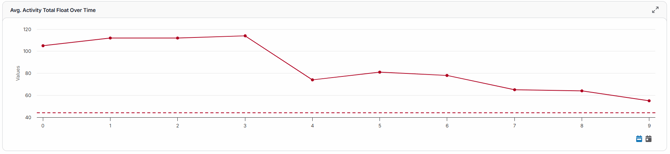
Average Activity Total Float Over Time:
Line graph showing the average total float of activities across all projects in the portfolio, viewable by period or by month. High or increasing float values can indicate unrealistic sequencing, poor schedule integrity, or an underutilized critical path.
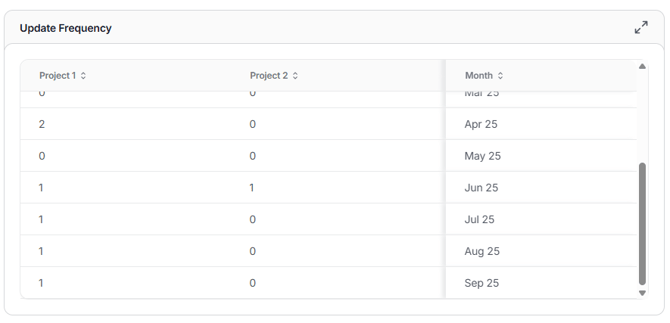
Update Frequency by Project:
Table showing how often each project in the portfolio has been updated, measured in the number of schedule updates per month. Helps identify projects with irregular or infrequent updates that may no longer reflect actual progress or current risks.
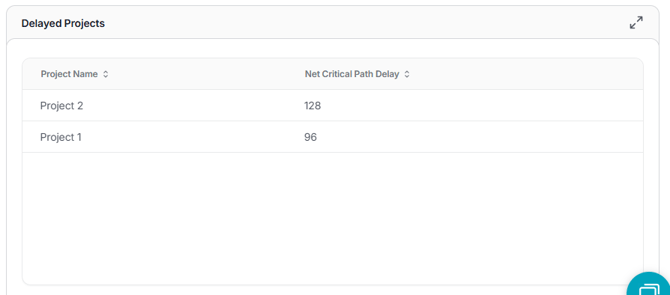
Delayed Projects:
Table listing projects in the portfolio with significant critical path delays. Columns include Project Name, Net Critical Path Delay, and any other metadata set up. For instance, Region, Scheduler, Sector, Project Type, District Manager, Revenue, and Earned Value to help prioritize and address delays.
By the time you’ve explored each section, you’ll have a clear grasp of how the Executive Dashboard pieces fit together and what they reveal about your projects. Use these insights to stay ahead of risks, understand performance trends, and make confident, data-driven decisions across your portfolio.