The Gantt Chart in SmartPM provides a visual representation of your project schedule, allowing you to analyze progress, track milestones, and access detailed activity metrics. You can access the Gantt Chart from the Gantt Tab on the project page.
This guide covers navigation, customization, and key features to help you make the most of the Gantt Chart.
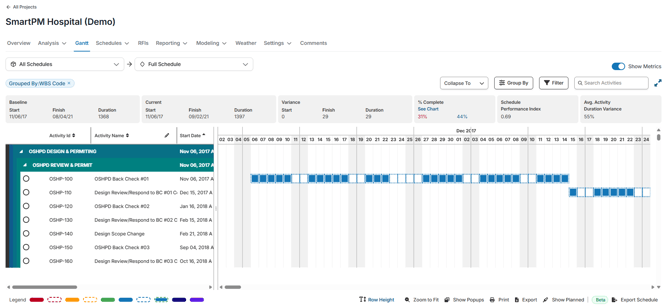
Viewing and Customizing the Chart
- Grouping Activities:
By default, SmartPM groups activities by WBS code. You can change this using the Group By button:- None – No grouping.
- Activity Code – Group by specific fields, such as Major, Phase, Area, SubArea, Responsibility, or Selection.
- WBS – Group by the project’s embedded WBS structure.
- Toggling Versions
- To change the data date, click on the blue DD line that displays the date.
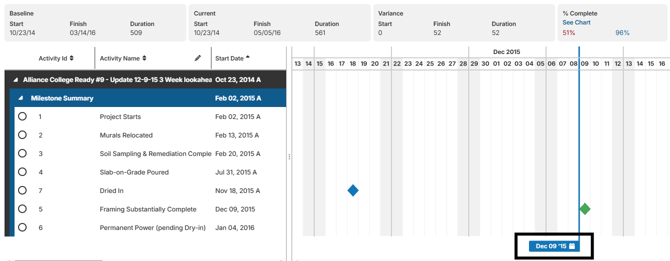
- To show the baseline or planned click "show planned" from the bottom menu bar.

- To change the data date, click on the blue DD line that displays the date.
- Expanding and Resizing:
- Click the expand button to make the Gantt Chart full-screen and view as many activities as possible.
- Expand or contract the left panel to uncover additional columns or view more of the Gantt chart.
- Use the Collapse To option at the top to collapse the entire chart by WBS structure.
- Sorting and Managing Columns:
- Click the pencil icon next to the activity name to add, remove, or reorder columns.
- Sort by any column by clicking the column header.
Column Definitions
| Actual Duration | The number of working days an activity has been in progress, calculated from the actual start date to the data date (or actual finish if complete). |
| Actual End Date | The date the activity was completed in the field. |
| Actual Start Date | The date work on the activity physically began. |
| Baseline Duration | The planned number of working days assigned to the activity in the approved baseline schedule. |
| Baseline Start Date | The planned start date for the activity as set in the approved baseline schedule. |
| Baseline End Date | The planned finish date for the activity as set in the approved baseline schedule. |
| Duration % Complete | The percentage of an activity's duration that has elapsed, calculated as actual duration divided by planned duration. |
| Duration Variance | The difference between the baseline duration and the current scheduled duration; a positive value indicates the activity is taking longer than planned. |
| Free Float | The amount of time an activity can be delayed without delaying the early start of any successor activity. |
| In Longest Path | A flag indicating whether the activity lies on the longest path through the network, which may or may not align with the critical path depending on the scheduling software. |
| Late End Date | The latest date an activity can finish without delaying the project completion date. |
| Late Start Date | The latest date an activity can begin without delaying the project completion date. |
| Native Total Float | The total float value as calculated directly by the source scheduling tool, before any adjustments or overrides applied by SmartPM. |
| Physical % Complete | A manually entered estimate of how much of the activity's scope has been physically completed, independent of duration or cost. |
| Planned Budget | The budgeted cost or resource value assigned to the activity. |
| Planned Duration | The number of working days originally assigned to the activity in the current schedule (distinct from baseline; reflects the current plan). |
| Planned End Date | The expected finish date for the activity based on the current schedule plan. |
| Planned Manpower | The number of workers or labor units assigned to the activity in the schedule. |
| Planned Start Date | The expected start date for the activity based on the current schedule plan. |
| Scheduled End Date | The calculated finish date for the activity based on the current schedule logic and data date. |
| Scheduled Start Date | The calculated start date for the activity based on the current schedule logic and data date. |
| Source Actual End Date | The actual finish date pulled directly from the source scheduling file (P6 or MS Project), before any SmartPM processing. |
| Source End Date | The finish date as it exists in the source scheduling file, before any SmartPM processing. |
| Source Start Date | The start date as it exists in the source scheduling file, before any SmartPM processing. |
| Units % Complete | The percentage of assigned resource units that have been consumed, calculated as actual units used divided by total budgeted units. |
| Start Date | The current early start date for the activity as displayed in SmartPM. |
| End Date | The current early finish date for the activity as displayed in SmartPM. |
| Activity % Complete | The overall completion percentage for the activity, which may be derived from duration, units, or physical percent complete depending on the activity's settings. |
| Duration | The total number of working days currently assigned to the activity in the schedule. |
| Remaining Duration | The number of working days still needed to complete the activity from the data date forward. |
| Total Float | The amount of time an activity can be delayed without delaying the project's overall completion date. |
| Computed Remaining Duration | The remaining duration as calculated bySmartPM based on schedule logic and progress, which may differ from the value entered in the source file. |
Exporting Schedules to P6 (.xer):
SmartPM now allows you to export schedules directly back into Primavera P6 using the .xer file format. To export a schedule:
- Navigate to the Gantt Chart within your project.
- Click the Export Schedule button from the bottom right.
- After selecting Export Schedule, a pop-up window will appear.
- Review the information in the pop-up, which includes details about file types and notes on the current beta functionality.
- Proceed with the export to generate your .xer file.
Color Coding
The Gantt Chart uses color-coded bars to indicate activity status:
- Blue – Actual progress
- Green – Planned work
- Red – Critical path activities
- Yellow – Near- Critical path activities
- Dark Purple – Actual Level of Effort Progress
- Light Purple – Planned Level of Effort Progress
- Dotted Lines – Historical Data
Metrics and Activity Insights
- Toggle the Show Metrics button to view metrics. Project-level metrics appear at the top ribbon, and automatically update based on any filters you apply.
- Search and Filter: Use the search bar to find activities by name, and apply filters to narrow your view by activity type or custom criteria.
Activity Details
Clicking on an activity opens a metrics bar at the bottom of the screen with the following tabs:
- Performance – Key performance metrics for the activity.
- Attributes – Duration, activity codes, constraints, and other relevant data.
- Change Log – Historical changes for that activity.
- Field Log – Average rate of progress.
You can also hover over an activity to view popups with additional information. Toggle these on or off using the Show/Hide Popups button at the bottom of the Gantt Chart.
Creating a Filter in Gantt Chart
Project filters help you focus on the projects that matter most by narrowing your view to a subset of projects based on specific criteria.
To create a filter from the Gantt Chart:
- Click Filter from the menu bar on the top right
- Click Add Filter
- Define Filter Criteria
- Choose your parameters from the dropdown.
- Give it a clear, descriptive name (e.g., “Active High-Risk Projects”). Saved filters can be reused anytime.
- To immediately apply the filter, click Apply Filter. To Save, click Save Filter.
View Look Ahead Schedules
SmartPM features quick 3 and 6 week look ahead filter buttons so you can see which activities are coming up. This allows you to make better informed decisions when updating your schedule.
To view Look Ahead Schedules:
- Click the Filters button above the Gantt chart
- You can either look through the list or search in the search box for the 3 & 6 Week Look-Ahead filter
- Click the checkbox next to your desired filter
- The Gantt Chart will update with the filtered selections.