The Milestones tab provides a focused view of your project's key milestones, their current statuses, and their potential schedule impacts. It serves as a central hub for tracking milestone progress, comparing performance against contractual requirements, and configuring how SmartPM calculates and displays your project analytics.
Adding a Milestone
SmartPM allows you to add key milestones to your project directly from the Milestones tab. These milestones are used to drive schedule analytics, track performance, and generate meaningful reporting.
To add a milestone:
- Open your project in SmartPM.
- Click Analysis in the project menu bar.
- Select Milestones from the sub-navigation options.
- From the Milestones tab, click the + Milestone button in the top right corner.
- A list of available milestones from your uploaded schedule will appear.
- Use the dropdown or the search bar at the top right to locate the milestone(s) you want to add.
- Click the radio button to the left of each milestone you would like to track.
- Once all desired milestones are selected, click Save.
- Your newly added milestones will populate in the Milestones table.
Tracking to Additional Milestones
As your project evolves, you may need to add more milestones to track beyond your initial setup. SmartPM makes it easy to expand your milestone tracking at any time.
To track to additional milestones:
- Navigate to Analysis > Milestones.
- Click the + Milestone button in the top right corner.
- The milestone selection panel will open, showing milestones available from your current schedule.
- Use the search bar or dropdown to find the additional milestone(s) you want to include.
- Select the radio button next to each milestone you want to add.
- Click Save. The new milestones will be added to your existing Milestones table.
Contractual End Date
The Contractual End Date is an important reference point for understanding schedule performance relative to your contract requirements. By default, this column may not be visible in the Milestones table, but it can easily be added using the column configuration feature.
To add the Contractual End Date to your Milestones table:
- Navigate to Analysis > Milestones.
- Locate and click the Columns button, found near the top of the Milestones table.
- A panel will appear showing all available columns.
- Find Contractual End Date in the list and toggle it on to add it to your visible columns.
- The Contractual End Date column will now appear in the Milestones table.
- To set up the contractual end date, click the hyperlinked date to the corresponding milestone and select the end date from the calendar pop-up and hit save.
Tracking to a Specific Model
In SmartPM, models represent different versions or scenarios of your project schedule. The Milestones tab allows you to track a milestone against a specific model, giving you more granular control over which schedule version drives your analytics and reporting.
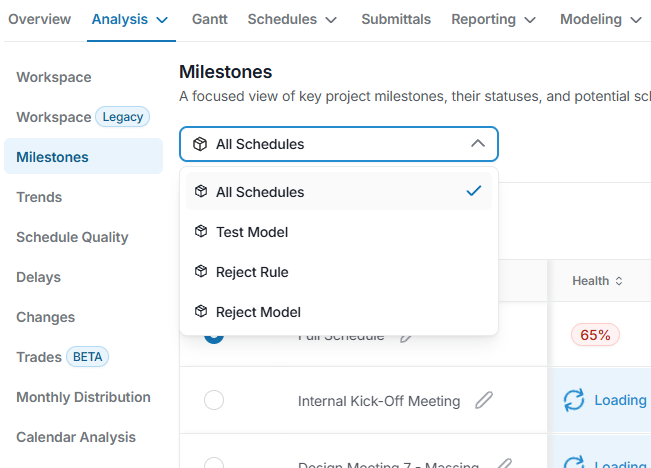
To track to a specific model, be sure your models and conditions are set up in the modeling tab. From there, use the dropdown menu to select the appropriate model you’d like to track your milestone against. Then, set up the milestone using the steps above with the appropriate model selected for analysis.
- Navigate to Analysis > Milestones.
- Choose a model from the dropdown menu
Setting a Milestone as the Primary Scenario
The Primary Scenario determines which milestone's analytics are displayed by default when you first log in to the SmartPM Dashboard. Setting the correct primary scenario ensures that your team sees the most relevant project data at a glance without needing to manually filter each time.
To set a milestone as the Primary Scenario:
- Click Analysis from the project menu bar.
- Select Milestones.
- From the Milestones table, click the radio button to the left of the milestone you want to set as the Primary Scenario.
- Click the blue Mark as Primary button that appears to the left of the milestone.
- A confirmation prompt will appear. Click the green Yes button to confirm.