OPC Integration
SmartPM now integrates with OPC to give your team a seamless way to connect your scheduling data directly with your project controls platform. Once the integration is set up at the company level, project teams can automatically receive and sync files from OPC without leaving SmartPM.
Key Benefits
- Automated file retrieval – SmartPM connects directly to your OPC database and fetches files on your behalf, removing the need for manual uploads.
- Reduced manual work – No more exporting from OPC and re-uploading to SmartPM. The integration handles the file transfer automatically.
- Project-level mapping – Map your SmartPM projects to their corresponding OPC projects using metadata, keeping your data aligned across both platforms.
- Regular syncing – Files sync automatically every 4 hours, with the option to trigger a manual sync at any time at the company or project level.
Note: You must have company admin permissions in SmartPM to set up the OPC Integration.
**Important: Projects in OPC must be in XML format. SmartPM can only retrieve and import XML files through this integration.
Setting Up Your OPC Integration
1. Navigate to Integrations. Go to Company Admin Settings via the global navigation menu on the left side of your screen. Click the Integrations tab, then locate the OPC Integration card.
2. Open the OPC Integration. Click View → at the bottom right of the OPC Integration card. A side panel will appear with details about connecting SmartPM to OPC.
3. Connect to OPC. Click Connect. A setup window will appear prompting you to enter your connection details.
4. Enter Your Credentials. In the fields provided, enter your OPC domain, username, and password, then click Next to establish the connection.
5. Map Your Metadata. To allow SmartPM to match projects across both platforms, you will need to map a SmartPM metadata field to the corresponding Project ID field in OPC. Select which SmartPM metadata will serve as the equivalent identifier, then confirm your mapping.
Note: Before this step, ensure that the relevant SmartPM projects have a metadata field whose value corresponds to their Project ID in OPC. This metadata must be created in SmartPM ahead of time.
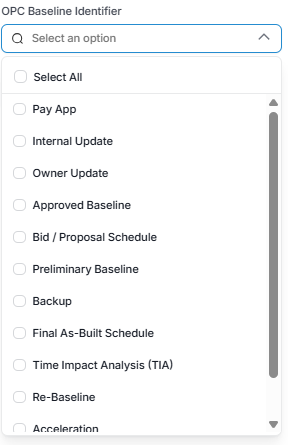
6. Choose the Identifier type: In your integration settings, the OPC Baseline Identifier dropdown controls which identifiers SmartPM watches for. On each sync, SmartPM checks your linked OPC project for new baselines. When it finds one tagged with a selected identifier, it pulls that exact snapshot into your SmartPM project as a new schedule update.
Good to know
-
-
Baselines saved with an identifier you haven't selected (e.g., Backup) are ignored — so scratch baselines won't clutter your SmartPM history.
-
-
- If an expected update doesn't appear in SmartPM, first check that the baseline was tagged with one of your selected identifiers.
7. Sync Your Projects. Once the integration is configured, files will sync automatically every 4 hours. To trigger a manual sync:
Company-wide: Return to the OPC Integration panel and click Sync Now to sync all mapped projects at once.
Individual project: Navigate to the specific project in SmartPM and click Sync Now from within that project to sync it independently.