SmartPM seamlessly integrates with Procore to enhance project schedule analytics without disrupting your existing workflows. This integration allows you to leverage SmartPM's advanced analytics directly within the Procore environment.
Key Features:
- Automated Schedule Analysis: Upon uploading your project schedule to Procore, push your schedule file to SmartPM to provide insights into schedule quality, delay metrics, and performance indicators.
- Embedded Experience: Access SmartPM's analytics tools within Procore, enabling you to view and interpret data without switching between platforms.
- Custom Dashboards: Create tailored dashboards that highlight critical project metrics, helping you focus on areas that require attention.
- Actionable Insights: Receive automated alerts and reports that identify potential risks and suggest corrective actions, facilitating proactive project management.
Getting Started:
To integrate SmartPM with Procore:
- Navigate to your Procore project and go to the Tools section.
- Click on Documents and upload your project schedule in either XER (Primavera) or MPP (Microsoft Project) format.
- Once the schedule is uploaded, return to the Documents section, select the SmartPM app from the Select App dropdown.
- SmartPM will detect the new schedule and prompt you to either link it to an existing SmartPM project or create a new one.
- Follow the on-screen instructions to complete the integration.
Procore Setup:
This guide walks you through connecting SmartPM to Procore so you can seamlessly access SmartPM analytics within your Procore environment.
- Log into Procore
- Sign in to your Procore account with your credentials.
- Access the App Marketplace
- Navigate to Apps → Select an App → Marketplace.
- This will open the Procore App Marketplace.
- Search for SmartPM
- Use the search bar to find SmartPM.
- Click on the Install button to add the app to your Procore environment.
- Open App Management
- Return to your Company Portfolio page.
- Go to Apps → Select an App → App Management.
- Configure SmartPM
- Search for SmartPM and click View. Select Configurations → Create Configuration.
- Search for SmartPM and click View. Select Configurations → Create Configuration.
- Choose a Configuration Type: You have two options for configuring your projects:
- Project-Specific Configuration
-
-
- Only selected projects are connected to SmartPM.
- Any new project added to SmartPM must be manually included in the configuration.
-
- Connects all projects globally.
- Projects in Procore that you don’t want in SmartPM will not function in SmartPM.
- For this guide, we’ll use the Global Projects Config.
- Enter a title for your configuration and click Create.
Link a Procore Project:
- Select the project you want to connect in Procore.
- Go to Apps → Select an App → SmartPM.
- Procore will ask for permission to allow SmartPM access. Click Allow.
- Choose either:
- Link to an existing project in SmartPM, or
- Import as a new project.
- Click Continue
Linking an Existing Project:
-
- If linking, select the corresponding SmartPM project.
- This step is only required the first time a project is linked.
Handling Missing Schedules:
- If Procore schedules are not yet in SmartPM, you will be prompted:
- Update Project with Missing Schedules, or
- Continue to Project Workspace.
- Option 1: Update with Missing Schedules
- Select which schedules not to upload from the list of missing schedules.
- Ensure all files are the same type (e.g., all XER or all MPP).
- Click Import Schedules.
- SmartPM will perform Delay Analysis on uploaded schedules.
- Option 2: Continue to Project Workspace
- Skip missing schedule uploads. You are ready to use SmartPM within Procore.
- Skip missing schedule uploads. You are ready to use SmartPM within Procore.
Importing a New Project:
- If importing, you’ll be redirected to SmartPM’s Add New Project screen.
- Follow the prompts to create and configure your project in SmartPM.
- Using SmartPM in Procore
- Once the integration is complete, the project is fully accessible in SmartPM.
- You can now run analytics, view metrics, and perform delay analyses directly within Procore.
Best Practices:
- Ensure Consistent Email Addresses: Use the same email address for both your Procore and SmartPM accounts to facilitate smooth integration.
- Enable Third-Party Cookies: Ensure that third-party cookies are enabled in your browser to allow proper functionality between Procore and SmartPM.
- Avoid Simultaneous Logins: Log out of SmartPM before initiating the integration from Procore to prevent potential conflicts.
User Assignment:
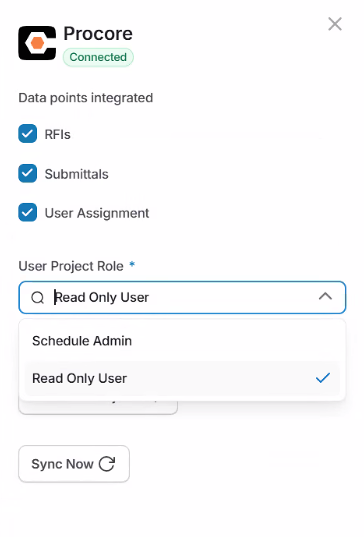
To sync project users from Procore, select the User Assignment checkbox and choose whether those users get Read Only or Schedule Admin access. Once you confirm, anyone assigned to the project in Procore is automatically added to the project in SmartPM.
Note: Each user must have the SmartPM app installed in Procore for this to work.