The Project Summary Report is a one-page snapshot of your project’s key metrics. It’s designed for quick status check-ins, like weekly meetings with your project team, superintendents, or subcontractors, when you need a clear view of performance without going into the full analysis.
To access the Project Summary Report:
- Navigate to your project from the Project List.
- Click Reporting from the top navigation bar.
- Click the play icon next to the Project Summary report.
- Select the end of period schedule.
- The report will automatically be generated.
Within the report you will see the following sections:
- Project Metrics: A summary of key project metrics across the top of the report, including:
- SPI (Schedule Performance Index): Planned versus actual performance.
- Project Health: The overall project health index.
- Delay: Days of delay on the critical path.
- Planned Impact: Days added or recovered through changes to the plan.
- Schedule Quality Grade: An assessment of whether the schedule update aligns with best practices.
- Planned vs. Actual Percent Complete: A graphic comparing the project’s baseline planned progress to its actual progress.
- Milestone Table: The baseline finish date, current finish date, and variance for each tracked milestone.
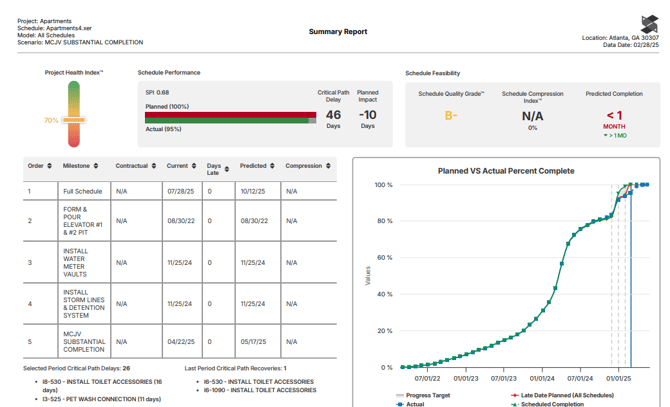
Note: If you’ve set up tracking to specific milestones, the report shows how each one is progressing.
Best practices for using the Project Summary Report:
- Bring it to recurring meetings: Its one-page format makes it easy to print and review with subcontractors and superintendents.
- Use it as a starting point: If a metric looks off, open the project’s Analysis tab to find what’s driving it.
- Run it after every update: Comparing reports from update to update shows how the project is trending