The RFI page gives you real-time visibility into how open Requests for Information are affecting your schedule. To use it, your software must be integrated with Autodesk or Procore (see Autodesk Integration/ Procore Integration). When RFIs are brought into SmartPM, they're automatically linked to an activity using AI.
To view the RFI page, go to your project, then click the RFI tab at the top.
- RFIs Needing Attention: shows counts by status:
- Critical: past their linked activity's start date.
- At Risk: approaching critical. Click either count to open a side panel showing the activities tied to that status.
- Most Critical Item: the RFI with the greatest impact on the schedule. Note that an RFI's overdue days (based on its Due Date) and its impact days (how many days until or since its linked activity becomes critical) are two distinct metrics and won't always match.
- For example, an RFI could be significantly overdue on its due date while its linked activity still has float remaining, or vice versa.

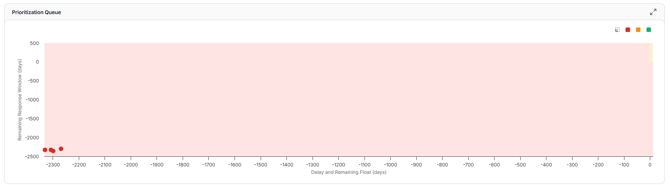
Prioritization Queue
A chart plotting every open RFI by urgency:
- Y-axis: the RFI's due date.
- X-axis (vertical dates): days of float. Above zero is float; below zero is delay.
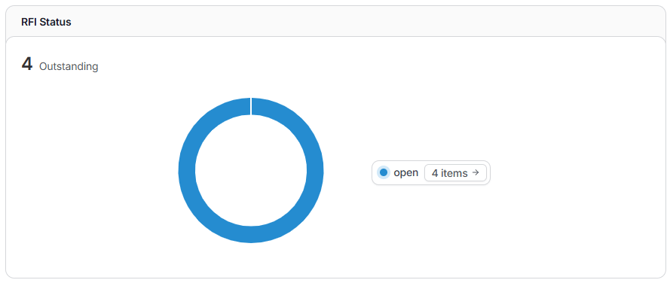
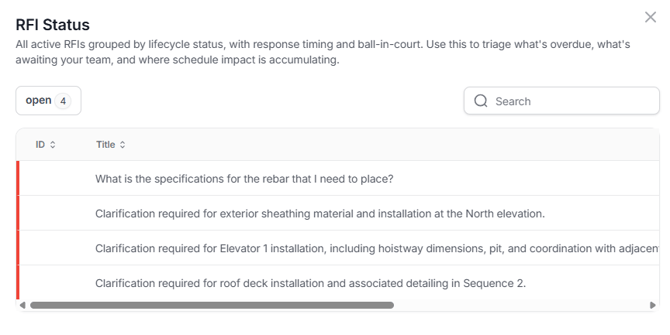
RFI Status
Shows the status of each RFI, matched to the status values used in your source system (Autodesk/Procore). Click the count to open a side panel showing the activities tied to that status.
Linked RFIs
Shows how RFIs are connected to activities:
- AI Linked: linked automatically by SmartPM.
- Linked: manually confirmed.
- Not Linked: no activity connection yet.
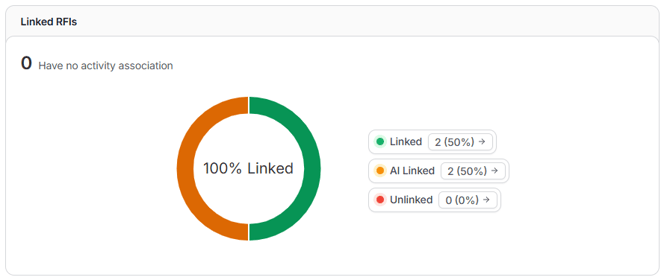
Click into any category to see which RFIs are within each category (Linked, AI Linked, Unlinked). To add an activity link to the RFI, click update to the right of the RFI, then select the activities that should be linked, and click Link Activities.
Upcoming RFIs
Lists RFIs in the order they're coming due. Filter by Critical or Near Critical. Click into any one to review the details of that RFI.
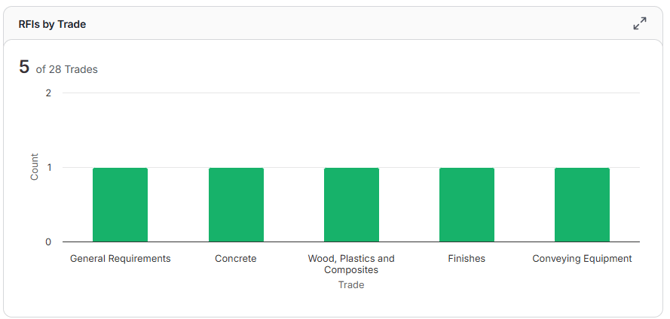
RFIs by Trade
Shows RFI counts broken out by trade. Trade must be configured for this widget to populate.
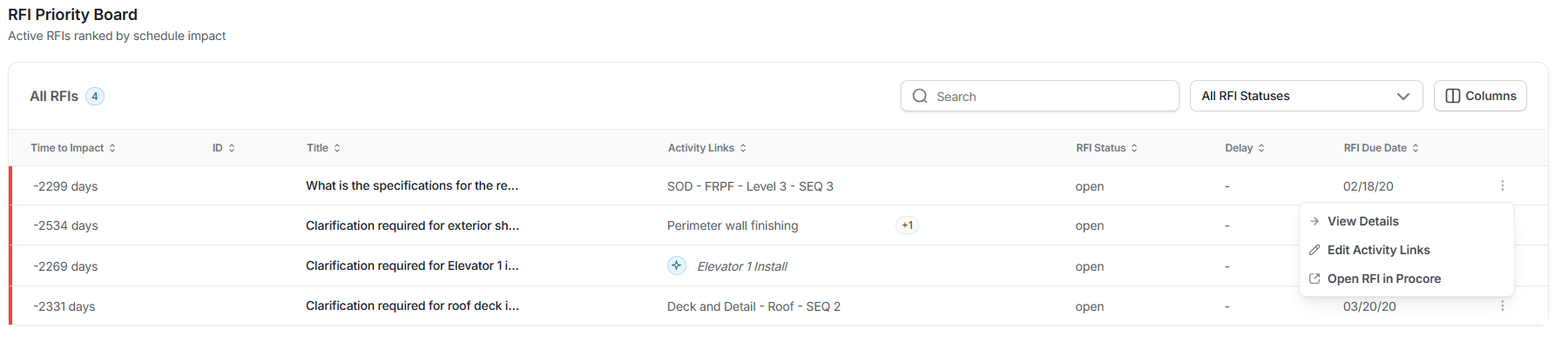
RFI Priority Board
A full list of every RFI in the project. Columns can be added, removed, or rearranged.
From the ellipsis menu on any RFI, you can:
- View Details
- Open in Autodesk/Procore
- Edit Activity Links
RFI Details Page
Clicking into an RFI opens its details, including:
- Created date
- Days overdue
- Current status
- Timeline of activity
- Description (pulled from Autodesk)
Note: Fields synced from Autodesk/Procore are read-only in SmartPM: edits made here do not transfer back to the source system.
Available actions:
- Sync
- Open Activity
- Edit Activity Links
Below the description of the RFI, a Gantt chart (or list view) shows the RFI's linked activities, and you can update activity linkage directly from here.
Float Erosion Chart
Shows a timeline of everything happening on the project in relation to this RFI:
- The zero float line marks the point after which everything is late: all RFIs should close before crossing it.
Float Erosion Legend: 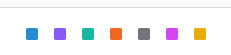
- Blue: Submitted
- Purple: Question
- Green: Response
- OrangeL Due Date
- Gray: Closed
- Pink: Activity Start
- Yellow: Today’s date
Note: This data reflects real time. If the project schedule is out of date, the chart will reflect that outdated schedule.