Overview
The Schedule Review Workflow is an optional feature that gives you the ability to preview and evaluate a schedule update before committing it to your project. This helps you catch issues early and avoid rebuilding your project off an incorrect update.
Enabling the Feature
The Schedule Review Workflow can be enabled or disabled at the company level by a Company Admin under Company Configuration. Once enabled, the review option will appear automatically when uploading a schedule update to a project.
To enable:
- Click Admin from the global navigation menu
- Click Company configuration
- Scroll down to Enable Schedule Review Workflow
- Click the Pencil Icon
- Select Enable from the drop down menu
- Click Save
How It Works
When uploading a schedule update, you'll be prompted to review the schedule before it's added to your project.
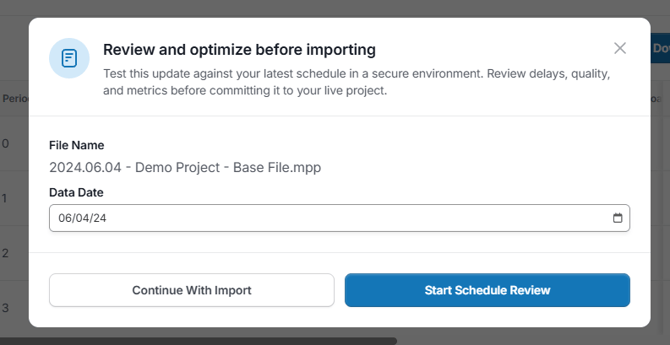
The review screen gives you a chance to evaluate your update, including quality, changes, delays, and a Gantt view, so you can confirm it looks right before committing.
Once your review is complete, you have two options:
- Add to Project: Confirms the import and adds the updated schedule to your project.
- Cancel Import: Discards the upload without affecting your project, allowing you to fix the schedule and re-upload it for another review before committing.
Things to know:
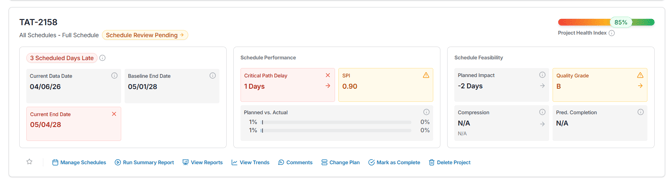
- You cannot have multiple reviews going on for one project at the same time. If there is a review pending, there will be a Schedule Review Pending badge on your project card:
- When you try to do a review on a project where a review is pending, SmartPM will ask if you want to end the current review or start another review.
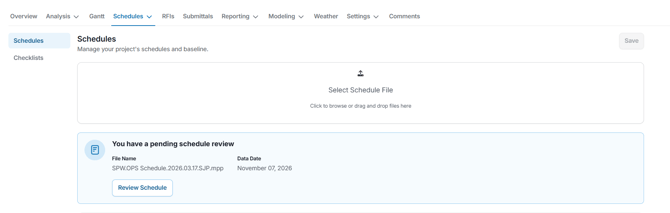
- There is a banner in the schedule management tab that allows you to finish the review: