The Should Start / Should Finish tab analyzes planned versus actual start and finish dates for any update, showing whether activities within a selected window hit their dates on time, finished late, or missed the window entirely.
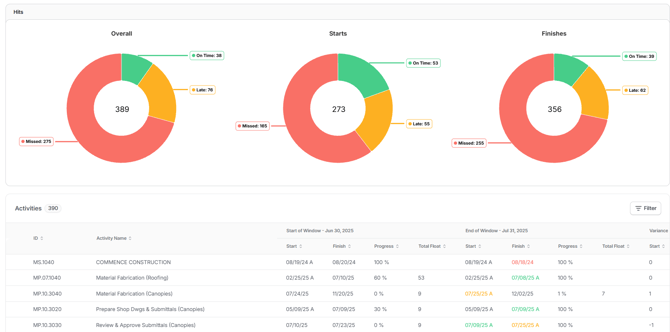
Results are broken out into three views: Overall, Starts, and Finishes, each displaying On Time, Late, and Missed counts so you can quickly gauge how well the schedule is tracking to plan.
The activities table below the charts lists every activity in the window with start-of-window and end-of-window comparisons across Start, Finish, Progress, and Total Float, along with variance. You can narrow the view by schedule, adjust the analysis window, group results, or apply filters using the controls at the top of the page.
To view Should Start / Should Finish:
- Click the name of the project you want to analyze from the Project List.
- Click Analysis from the top navigation bar.
- Click Should Start / Should Finish from the left navigation bar.
- Use the dropdowns at the top to choose a model and milestone. Select a milestone to see only the activities that drive it.
- Use Select Window to choose the time window you want to review. Each window runs from one schedule update’s data date to the next.
Reading the Hits charts:
The Hits section shows three charts summarizing how activities in the window performed:
| Chart | What it Shows |
|---|---|
| Overall | All activities that should have started or finished in the window. |
| Starts | Activities that should have started in the window. |
| Finishes | Activities that should have finished in the window. |
Each chart shows the total number of activities in the center, broken down by status:
| Status | What it Means |
|---|---|
| On Time (green) | The activity started or finished as planned within the window. |
| Late (orange) | The activity started or finished within the window, but later than planned. |
| Missed (red) | The activity didn’t start or finish within the window. |
Using the activity table:
The Activities table lists every activity in the window. For each activity, it shows:
| Column Group | What it Shows |
|---|---|
| Start of Window | The activity’s start, finish, progress, and total float as of the first data date in the window. |
| End of Window | The activity’s start, finish, progress, and total float as of the last data date in the window. Dates that moved later are shown in red. |
| Variance | The difference between the start and end of the window for each value. |
Click any column header to sort the table.
Grouping, filtering, printing, and exporting:
- Click Group By to group the activities by trade, area, phase, or another activity code.
- Click Filter above the activity table to narrow the list to specific activities.
- Click Print to print the view or save it as a PDF.
- Click Export to download the activity data to Excel.
Best Practices for using Should Start / Should Finish:
- Review before each update: Check which activities were missed or late in the last window, so the next update reflects what actually happened in the field.
- Start with missed activities: Missed activities are the biggest risk, since work that hasn’t started can push back everything that depends on it.
- Group by trade: Group the activities by trade before coordination meetings, so you can walk through exactly which activities each trade missed.
- Watch float: Compare total float at the start and end of the window. Activities that lost float are moving closer to the critical path.
- Track reliability over time: Pair this view with the Window Start Accuracy and Window Finish Accuracy trends to see whether on-time performance is improving across updates.