Click here to view the Custom Workspaces Webinar.
Click here to view the Custom Workspaces Walkthrough.
Custom Workspaces
Custom Workspaces allows you to create multiple custom workspaces within your SmartPM projects. This gives you the flexibility to build tailored views for different teams, project phases, or analysis needs within a single project.
As an Admin, with Manage Workspaces, you can:
- Create unlimited custom workspaces for each project
- Add filters at both the workspace level and individual section level
- Customize layouts with sections, charts, tables, and info blocks
- Set workspaces as company defaults
- Control access with public/private settings and user assignments
- Build reusable templates for consistent reporting across projects
The Manage Workspaces feature is available to all users.
To create custom workspaces:
From Within a Project
- Navigate to any project in SmartPM
- Click Analysis from the top menu bar
- Click the Workspace tab
- Click the three-dot menu (⋮) next to "New"
- Select "Create New Workspace"
To create a new workspace:
Step 1: Select a Template Project
When you create a new workspace, SmartPM will ask you to select a project to use as a template. This project provides sample context data so you can see how your workspace will look as you build it.
Important: The template project is NOT tied to the workspace permanently. It's only used during the creation process to help you visualize your layout with real data.
Step 2: Name Your Workspace
Give your workspace a clear, descriptive name that indicates its purpose.
- Be specific: "Critical Path Activities - Q1 Review" instead of "Workspace 1"
- Include the filter or focus: "Site Progress Dashboard" or "Electrical Trade Performance"
- Use consistent naming conventions across your company for easier navigation
- Consider the audience: "Executive Summary" vs. "Scheduler Deep Dive"
Step 3: Add Sections and Content
Click "Add Section" to begin building your workspace layout.
- Chart: Add any SmartPM chart (planned vs. actual, compression, hit rate, etc.)
- Table: Add tabular data views (full-width only for tables)
- Info Block: Add text, images, or explanatory content
- Custom Column Layout: Choose between single-panel-to-column layouts
Step 4: Customize Each Section
For each section you add, you can:
- Rename the section for clarity
- Apply section-specific filters (see Filtering Options below)
- Adjust column width (split or single-panel)
- Reorder sections by dragging and dropping
Step 5: Save Your Workspace
Click "Save Workspace" to finalize your custom workspace.
How to Filter Project Workspaces
One of the most powerful features of custom workspaces is the ability to filter.
Apply a filter to the entire workspace that affects all charts, tables, and sections.
How to add a section-level filter:
- Click Manage Workspaces from the workspace tab
- Click the edit icon from the right of the workspace you want to edit
- Select a project to use as sample data
- Click the edit icon on the section you want to filter
- Click Filter at the top of the page
- Select your filter criteria (e.g., "Near Critical Activities") and click Add
- This filter only applies to this section
Use Case: Display "Planned vs. Actual Complete" for all activities in one chart, and "Planned vs. Actual Complete - Critical Path Only" in the chart right next to it for comparison.
Naming Filtered Sections
When you add a section-level filter, rename the section to clearly indicate what filter is applied. This prevents confusion when viewing the workspace later.
Example:
- Default Name: "Planned vs. Actual Complete"
- Filtered Name: "Planned vs. Actual Complete - Critical Path Only"
Without descriptive names, users won't know which chart is filtered and which isn't, especially if you have the same chart type displayed multiple times with different filters
Private vs. Public Workspaces
Private Workspaces
- Only visible to the user who created it
- Cannot be set as a company default
- Ideal for personal analysis or work-in-progress layouts
Public Workspaces (Company Admins Only)
- Visible to all users in your company (or specific assigned users)
- Can be set as a company default
- Ideal for standardized reporting and team collaboration
How to Change Workspace Access Levels:
- Go to Manage Workspaces (from the project or Reporting tab)
- Find your workspace in the list
- Click on the "Private" or "Public" label in the Access column
- Toggle between Private and Public
If you want to make a workspace available to specific users (not everyone in the company), you can assign individual users.
Requirements:
- The workspace must be set to Public (you cannot assign users to a Private workspace)
- You must be a Company Admin to assign users
How to Assign Users to Custom Workspaces (Company Admins Only):
- Go to Manage Workspaces
- Find the workspace you want to share
- Click on the number in the "Assigned Users" column (e.g., "0")
- Select the users you want to give access to this workspace
- Click Save
The company default workspace is the workspace that all users see when they first open the Workspace tab in any project.
How to Set a Company Default Custom Workspace:
- Go to Manage Workspaces (Reporting Tab or within a project)
- Find the workspace you want to set as the default
- Click the checkbox in the "Company Default" column
- Only one workspace can be set as the company default at a time
The company default workspace must be Public (it cannot be Private). Once a workspace is set as the company default, it cannot be made Private. If you set a new workspace as the default, the previous default will be unselected automatically.
Understanding the Default Project Workspace Tab:
The classic Project Workspace Tab is a centralized overview that provides access to all project analytics and performance insights. Within the workspace tab, there are several metrics available for analysis.
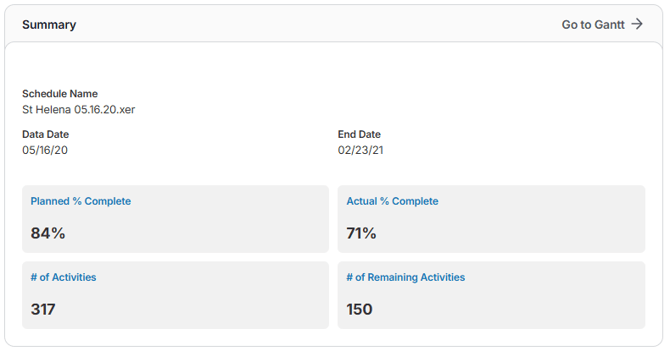
Summary
A snapshot of your project’s key details, including links to the Gantt chart, schedule name, data date, finish date, planned vs. actual progress, and activity counts, so you can quickly see overall status and remaining workload at a glance.
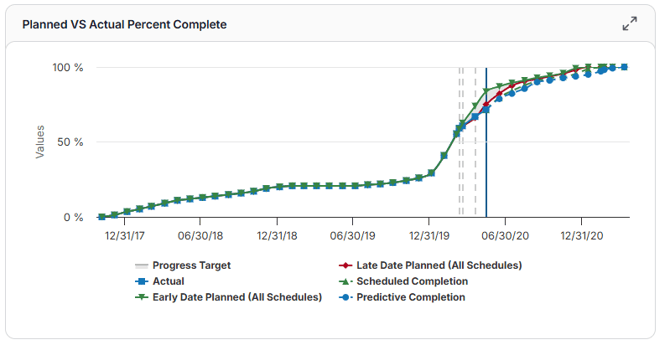
Planned VS Actual Percent Complete
A visual comparison of planned vs. actual progress over time, including early and late projections. The chart also forecasts future performance beyond the data date using historical production rates to show where your project is headed.
(Displays: Progress Target, Early/Late Planned Dates, Actual Progress, Scheduled Completion, Predictive Completion)
Average Trend Lines
The chart includes two average trend lines:
- Left of the Data Date: Represents the average of past data, up to the current data date.
- Right of the Data Date: Represents the average of future data, from the current data date onward.
To calculate these averages:
- Sum all metric bar values for the respective side of the data date.
- Count the number of months represented.
- Divide the total sum by the number of months to obtain the average.
Example:
If the sum of metric values to the right of the data date is 188, and there are 6 months:
188 ÷ 6 = 31.33
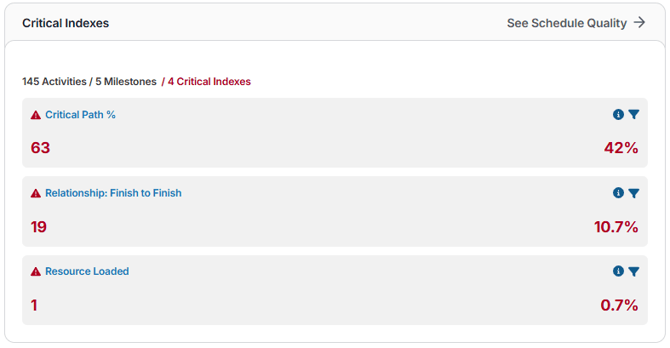
Critical Indexes
A snapshot of your schedule’s overall health, showing counts and percentages of key quality indicators. Quickly identify high-risk logic issues, like missing ties, negative lags, or finish-to-finish relationships, that could affect accuracy and reliability.
(Displays: # of Activities, # of Milestones, Critical Indexes such as Finish-to-Finish, Missing Logic, and Negative Lag)
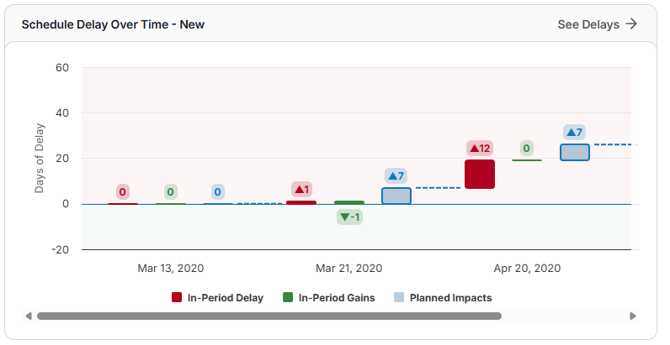
Schedule Delay Over Time - New
See how your project changes day by day, including delays, gains, compression, and adjustments affecting the critical path, so you can understand what’s driving schedule performance.
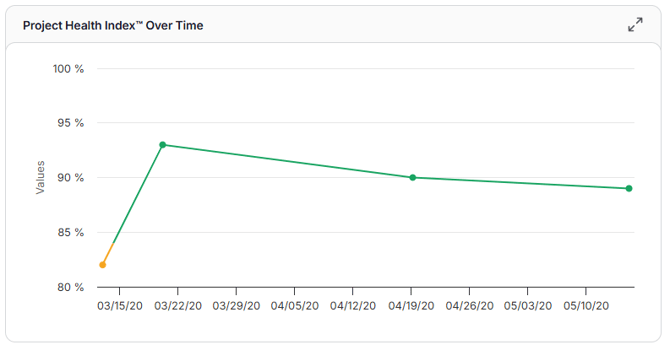
Project Health Index Over Time
Tracks your overall project risk over time using the Schedule Quality Grade™, SPI, and Schedule Compression Index™. Quickly see whether risk is rising, falling, or staying stable.
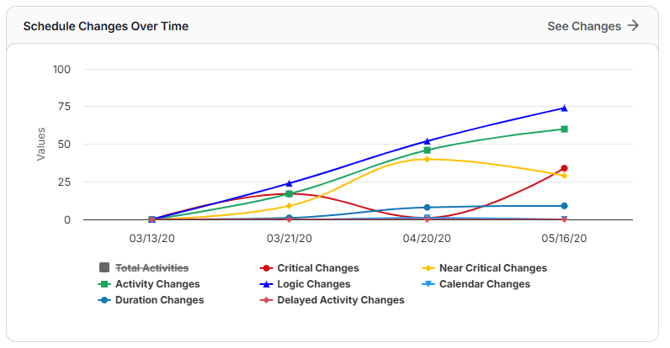
Schedule Changes Over Time
A concise view of all recent schedule updates, including activity, logic, calendar, duration, and delay changes, plus counts of critical and near-critical changes. Easily drill down to see more details when needed.
(Displays: Total Activities, Critical Changes, Near-Critical Changes, Activity Changes, Logic Changes, Calendar Changes, Duration Changes, Delayed Activity Changes)
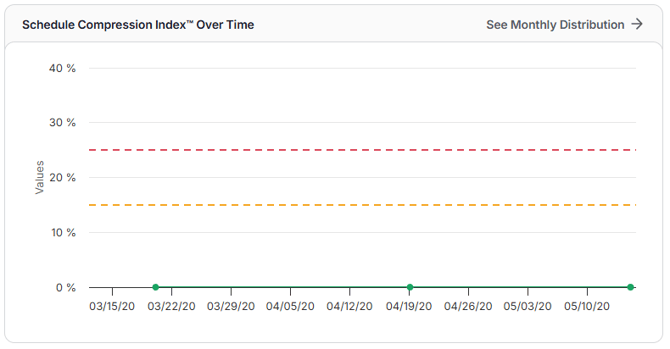
Schedule Compression Index Over Time
Shows how the Schedule Compression Index™ changes over time from delays, schedule updates, or missed progress. Highlights how much daily effort is increasing to stay on track, with the option to explore more in the Monthly Activity Start & Finish Distribution Table.
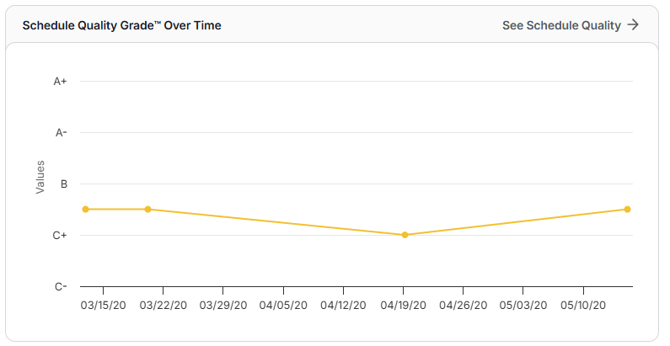
Schedule Quality Grade Over Time
Displays the Schedule Quality Grade™ over time, helping you see if your schedule’s structure is staying strong or starting to break down. Click through for more details in the full Schedule Quality Report.
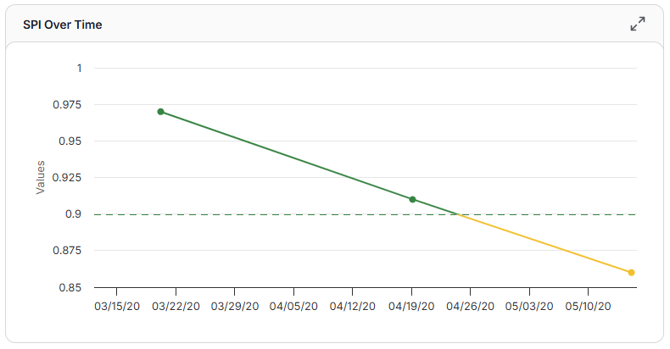
SPI Over Time
Tracks the Schedule Performance Index (SPI) over time, showing whether your project is ahead, behind, or on track.
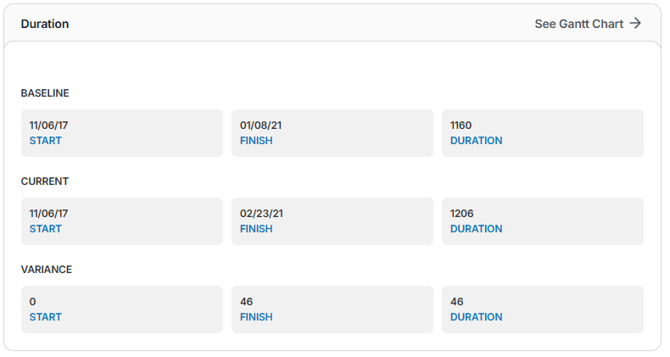
Duration
Shows baseline and current start/finish dates and durations, along with variances, so you can quickly spot slippage or compression. Acts as an early warning for potential schedule risk, even from small changes.
(Displays: Baseline – start, finish, duration; Current – start, finish, duration; Variance – start, finish, duration; option to see Gantt)
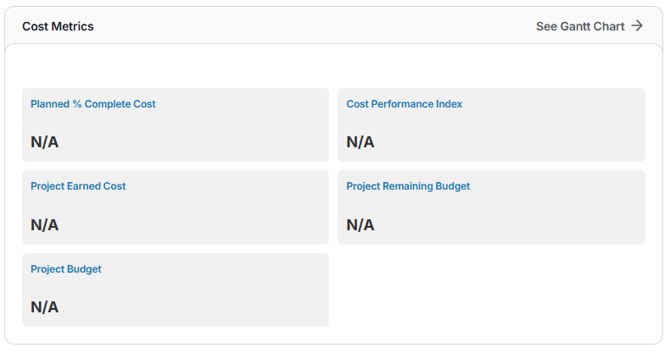
Cost Metrics
Provides a snapshot of your project’s budget performance, including planned costs, earned value, remaining budget, total budget, and the Cost Performance Index (CPI). Quickly see if the project is on track, overspending, or underperforming in cost efficiency.
(Displays: Planned % Complete Cost, Cost Performance Index, Project Earned Cost, Project Remaining Budget, Project Budget; option to see Gantt)
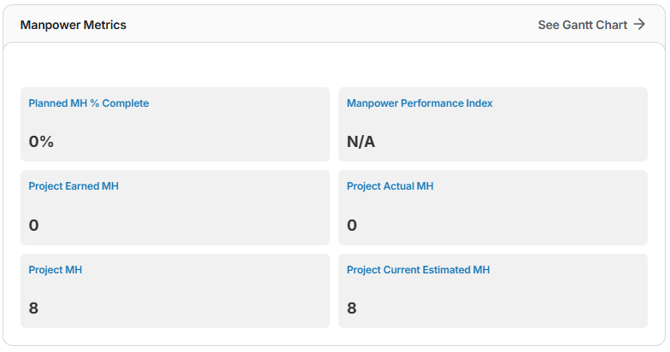
Manpower Metrics
Tracks labor productivity and resource efficiency, showing planned progress, earned and actual man-hours, total planned hours, current estimates, and the Manpower Performance Index (MPI). Helps support workforce planning and resource leveling.
(Displays: Planned MH % Complete, MPI, Project Earned MH, Project Actual MH, Total Planned MH, Current Estimated MH; option to see Gantt)
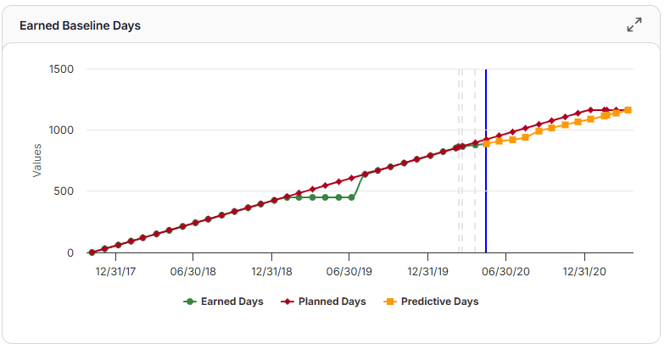
Earned Baseline Days
Shows how your project’s progress compares to the baseline and planned schedule. Earned Days represent the number of baseline days it would have taken to achieve the actual progress completed, alongside Planned Days and Predictive Days for forecasting.
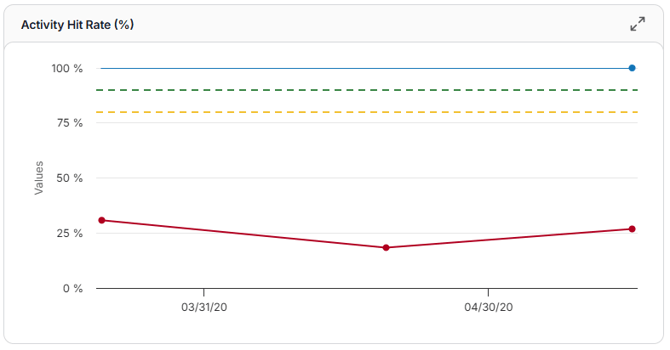
Activity Hit Rate
Displays the trend of activities starting and finishing on time, based on the latest update and progress targets, helping you track schedule reliability and on-time performance.
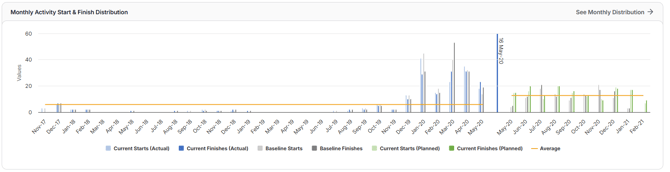
Monthly Activity Start & Finish Distribution
Compares baseline vs. current activity starts and finishes each month, overlaid with actuals. Click any value to see the specific activities, dates, variances, and related change log details.
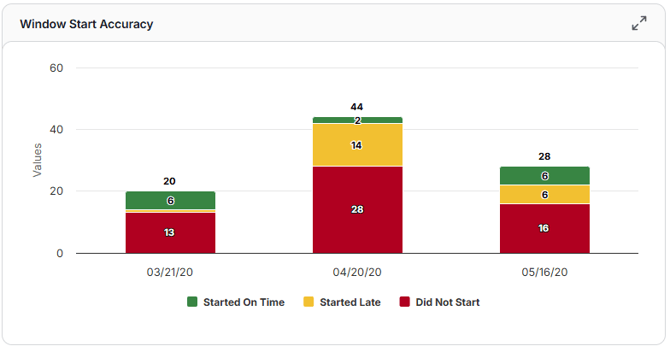
Window Start Accuracy
A stacked bar chart showing activities that started on time, started late, or didn’t start. Quickly see how accurately work began compared to the most recent update’s plan.
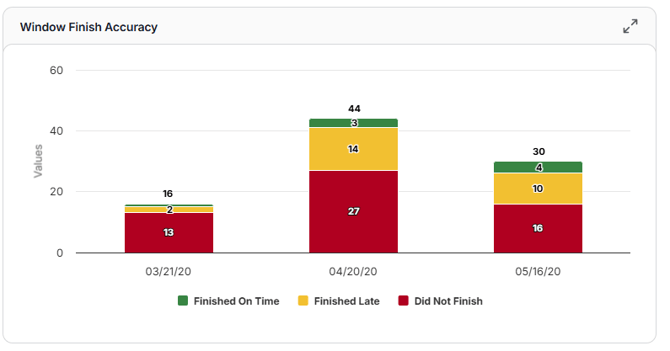
Window Finish Accuracy
A stacked bar chart showing activities that finished on time, finished late, or didn’t finish. Easily track how closely actual completions matched the most recent update’s plan.
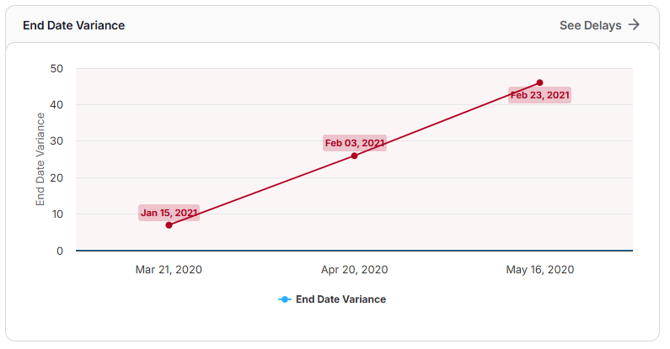
End Date Variance
A line or bar graph showing how current finish dates compare to baseline or contractual dates for each update period. Quickly see if schedule slippage is growing, stabilizing, or improving over time.